Playlists
Creating playlists in the app is like being a DJ for your own musical universe. Whenever you stumble upon a track you love, from YouTube hits to local tunes, downloaded gems, or radio melodies, you can easily spin up a new playlist.
Just tap the button at the bottom of the add-to-playlist dialog, and you're set to curate your own mix. It's an enjoyable and simple way to weave together various tracks into playlists that perfectly match your mood or moment.
And don’t forget—you can also include your AI-generated music! With the AI Music Generator, you can create custom tracks in any genre and add them directly to your playlists. It's a fun and unique way to personalize your playlists with music you've made yourself.
Mix with your own music
Making a playlist takes one tap: while adding a song to a playlist, use the button at the bottom of the dialog to create a new one. Any track fits in - YouTube music, your local files, downloads and radio stations.
Add the songs you made with the AI music generator too, and your playlists get a sound nobody else has.
Where are my playlists?
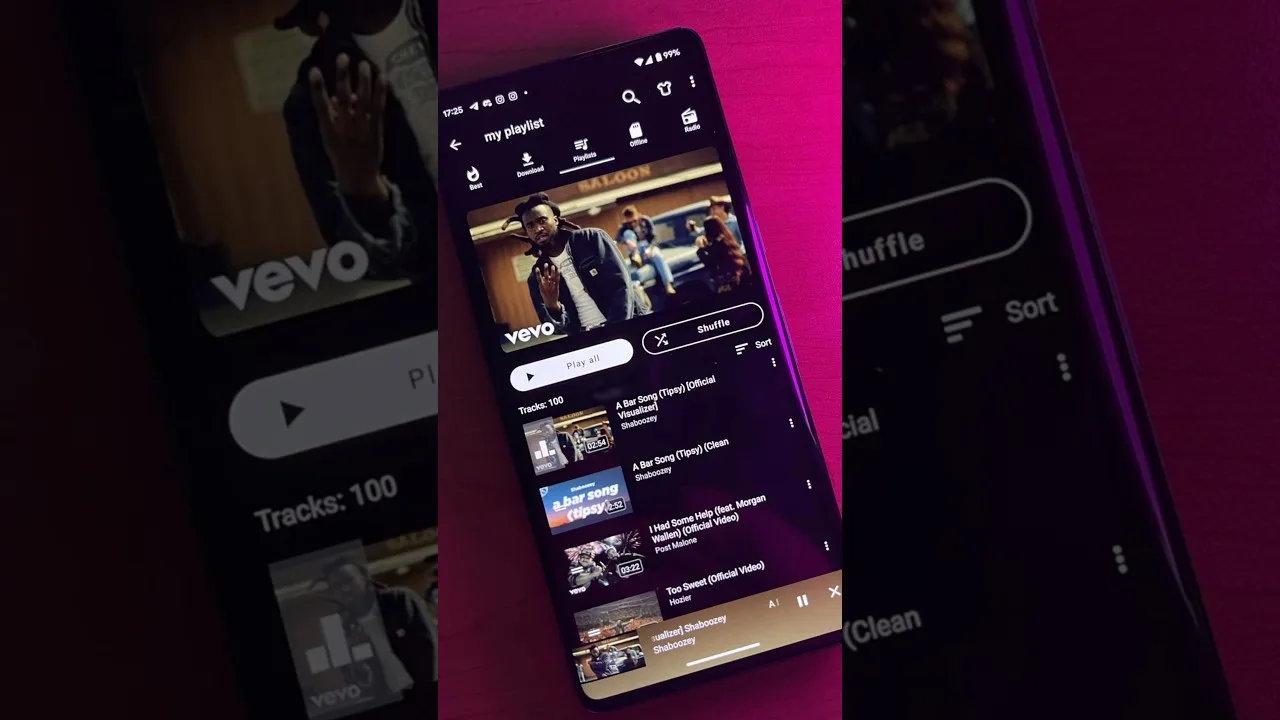
To explore your playlists in the app, just head to the "Playlist" tab right at the top. This dedicated spot makes it a breeze to dive into your collections, helping you keep your tunes well-organized and at your fingertips whenever you're in the mood for music.
About playlists
The app offers a constantly updating selection of predefined playlists across various genres. These playlists are refreshed daily, ensuring you always have new tunes and popular hits to enjoy.
Feel free to explore and personalize: add songs from these playlists to your own or save entire playlists to your library. The app allows for a rich blending of different musical sources, including YouTube, offline content, and radio stations, enabling you to create a listening experience that's tailored to your unique preferences.
It's like being your own music curator, crafting playlists that reflect your individual style.
How to create a new playlist?
Crafting a new playlist in the app is straightforward and fun. Head over to the Playlists tab and hit the 'New Playlist' button to start.
Or, for a quick add-on-the-go, click the three dots menu "︙" next to any song and select 'Add to playlist'. Both ways offer an easy path to create and customize your playlists, letting you mix and match songs to suit your mood or occasion.
How to manage new song placement in playlists?
To add a twist to how new songs line up in your playlists, open All settings (tap the profile icon at the top right). There's a cool option called Add new songs to top. Flip this switch, and any new tunes you add will take the lead spot in your playlists, instead of joining the queue at the end.
It's like putting the latest tracks in the spotlight, letting you shape your playlists to match your current music mood.
How to rearrange songs in playlists?
Shuffling tracks in your playlists is like being the conductor of your own musical symphony. For your personally curated playlists, grab a track by its cover marks or give it a long press, then slide it to its new spot.
Want a track to jump to the top or bottom? The three dots menu "︙" on each track is your quick shortcut. This feature is your creative space to organize tracks in a way that suits your listening journey.
Remember, to rearrange tracks in preloaded playlists, just add them to your own first. It's all about making your music flow just right.
Why does the track order in playlists keep changing?
Preloaded playlists on the main page get refreshed daily, which includes reshuffling the track order. If you’d like to keep your favorite tracks in the perfect order, simply make the playlist your own! Open the playlist, tap the three dots (︙) in the top right, and choose “Add to playlist.” From there, you’re free to organize it however you like—your playlist, your rules!
Why do I see duplicate tracks in playlists?
AT Player allows duplicate tracks in playlists by design, giving you full control over your music experience. This is the standard approach used by Spotify, Apple Music, and YouTube Music.
Duplicates may appear in these scenarios:
- Intentional repeats: You might add the same track multiple times for DJ-style mixes, specific listening flow, or to have a favorite song repeat at certain points in your playlist.
- YouTube playlist sync: When re-importing or syncing a YouTube playlist, tracks may appear again if they weren't removed first.
- Same song, different sources: The same song might exist as a music video, official audio, live version, or remix, each with a unique ID.
This flexibility lets you organize playlists your way. When you want to clean up, simply use "Delete duplicated tracks" from the playlist's three-dot menu.
If you're experiencing unexpected duplicates that don't fit these scenarios, please reach out to us at atplayer.com/contact. We'd love to help!
How to delete duplicated tracks?
Tired of seeing double? Let's tidy up your playlist! Head to the "Playlist" tab, choose the playlist with duplicates, and tap the three dots. Then, select "Delete duplicated tracks" from the menu. Voila! Your playlist will be clean and clutter-free.
How to sort by genre
Organizing your tunes by genre is like creating your own music map in the app. When you're vibing to a song, hit the three dots "︙" for the song's menu, choose to add it to a new playlist, and then type in your desired genre.
The app cleverly suggests genres as you type. It's a neat way to sort your collection, making each genre a musical neighborhood. For offline songs, the app sorts them by genre for you. Just visit the "Offline" tab and click on "Genres" to see your songs sorted into their own genre corners.
How to back up and export all my playlists?
Creating a backup of your playlists is like putting your music treasures in a safe box. The easiest way is the optional sign in:
- Open the Playlists tab and tap Sync, or tap the profile icon at the top right and then Sign in.
- Choose Sign in with Google or Sign in with Apple.
That's it. From now on your playlists and favorites are backed up on their own and stay in sync on all your phones, iPhone and Android - no button to press. Signing in is optional, everything else in the app works without an account, as always.
Prefer a file? Tap the profile icon at the top right, choose Backup and restore - Export Playlists and send the file to yourself by email or messenger. After a reinstall, open that email on your phone, tap the playlist attachment and choose the app. Like magic, your playlists will reappear in your freshly installed app, ready to play your favorite tunes again.
How to restore my playlists on a new phone from a backup?
The best way to move to a new phone is the optional sign in:
- On the old phone open the Playlists tab, tap Sync and sign in with Google or Apple - your playlists and favorites are backed up.
- On the new phone install the app, tap Sync on the Playlists tab and sign in with the same account.
- Your playlists and favorites are back in a moment. Playlists already on the new phone stay, nothing is replaced.
Good to know:
- Downloaded songs are saved on the phone itself. The ones in your playlists and favorites come back with them and play online right away - download them again to keep them offline.
- Your own music files stay on the old phone - copy them to the new one with a cable or any file transfer app.
No account? Android system backup can bring the app data with your playlists and settings back during the new phone setup - see Use the System backup. Or move them with a file: tap the profile icon at the top right, choose Backup and restore - Export Playlists, send the file to yourself and open it on the new phone.
To transfer a single playlist, open its menu and use Share link or Share to send it to another device.
This way, your playlists stay with you - whether switching phones or reinstalling the app.
How to restore generated/downloaded songs on a new phone?
Every song you download and every track you create with the AI Music Generator is saved as an MP3 file right on your phone, in the Music/atplayer folder - yours to keep, no account needed.
To bring them to a new phone:
- Connect the old phone to a computer with a cable, or use any file transfer app.
- Copy the Music/atplayer folder to the same place on the new phone.
- Open the app - your songs are waiting in the Offline tab.
Signed in with Sync on the Playlists tab? Downloaded songs in your playlists and favorites come back with them and play online right away - download them again to keep them offline.
How to import a playlist?
Received a playlist in a .atl file via email or messenger? Just tap to open it on the device where you’ve got the app installed. The app will promptly recognize it and pop up a question asking if you’d like to import it. Think of it as adding a new contact to your phone—quick and straightforward.
How to bring your favorite YouTube Music playlists to AT Player?
Let's groove! Here’s how to seamlessly bring your favorite playlists from YouTube Music to AT Player:
- Open up your cherished playlist in YouTube Music and tap the Share button.
- Select "Share with other apps" and find AT Player from the options.
- Watch as your playlist magically appears in AT Player.
- Now, tap the three dots in the upper right corner and choose "Add to playlist."
Voila! Your playlist is now rocking out in AT Player, ready for your listening pleasure anytime, anywhere.
What if I lost my playlists?
Signed in before? Open the Playlists tab, tap Sync and sign in with the same Google or Apple account - your playlists and favorites come back.
Not signed in? Android system backup restores your playlists automatically even after reinstalling. This is usually enabled when you sign in with your Google account on the phone. You can check it in Settings > System > Backup.
If that doesn’t help, tap the profile icon at the top right and choose Backup and restore - Restore.
The app creates automatic backups the last 15 days you used it - older days roll out, but it doesn’t matter how long you're away.
To avoid future loss, sign in once with Sync on the Playlists tab and your playlists are backed up automatically, or export them in the same Backup and restore menu - save the file locally or email it to yourself.
Restore deleted playlists
Tap the profile icon at the top right, choose Backup and restore - Restore and pick a backup from before the playlist was deleted.
How far a long time is it possible to restore it?
If you use Android system backup, your playlists can be restored at any time.
The same goes for internal app backups - they use a 15-day rolling system. That means we always keep your last 15 days of app usage, no matter how long ago you last opened the app.
To keep your music collections safe, we recommend creating regular manual backups too - just in case. And the best protection is to have system backup turned on - see the dedicated FAQ for setup steps.
Use the System backup
We recommend always using Android system backup to protect your playlists. It's the most reliable way to keep your data safe.
How to enable system backup:
- Go to Settings > System > Backup (or Settings > Google > Backup on some devices)
- Sign in with your Google account if not already
- Enable "Backup by Google One"
- Make sure "App data" is included in backup settings
- Tap "Back up now" to create an immediate backup
In most cases, backup is enabled automatically when you set up your Google account. But it's worth checking to make sure your music collections are protected.
How to restore from system backup:
- Best method: During device setup after factory reset or on a new phone, at the "Copy apps and data" step, select "Can't use old device," sign in with the same Google account, select your backup, and tap Restore.
- After setup: Go to Settings and search for "Data Restore Tool" or "Android Setup" - this can restore app data even after your device is already set up. Alternatively, try Settings > Back up or copy data > Copy data.
Important notes:
- Some app data only restores fully during initial device setup
- Backup expires after 57 days of device inactivity
- Only the most recent backup is stored by Google
- You must use the same Google account to restore
Playlist radar
This feature helps you to find new playlists based on your music preferences. It's like having a personal music guide, suggesting playlists that match your taste. But it has a unique touch - you easily search playlists with a specific song but in other users playlists worldwide! And chances are, you'll discover new tracks and artists you'll love. It's a fun and interactive way to explore music and expand your playlist library.
How to delete a track (from local files)?
Tidying up your local files in the AT Player app is like keeping your digital music shelf neat.
If there's a downloaded song you no longer need, just head to the Offline tab. Here, your tracks are waiting in the local files explorer.
Find the song you want to say goodbye to, tap the three-dot menu next to it, and choose the delete option.
It's a simple way to curate your collection, ensuring it's filled only with the tunes you love.
Why can’t I remove a track from a playlist?
Only playlists you’ve created are fully editable. If you’re trying to delete a song from one of the preloaded playlists, you won’t see that option - those are updated automatically to keep things fresh and filled with trending tracks. Want to make it your own? Just tap the three dots menu, add it to your library, and you’ll be free to rearrange and remove songs however you like.
How to delete a playlist?
Removing a playlist in the app is like clearing space for new musical adventures.
Just tap the menu next to the playlist's name and select the option to delete it. This keeps your music library fresh and organized, just the way you like it.
How to clear history and queue?
Clearing your History in the app is like starting with a clean slate. Tap the profile icon at the top right and open All settings.
In its Tools section you'll find Clear watch history, Clear videos in History and Clear search history. It's a quick way to refresh your music experience and get ready for new tunes.
Order of offline tracks
Want your offline tracks in a different order? Open the expanded mode of the playing track and go to its queue. There you can move the tracks with the marks on their covers and put them in the order you like.
How to add to Favorites?
Adding a song to your Favorites in the app is as easy as giving it a thumbs up.
When a song is playing, tap the 'like' icon in its expanded view. Or, for a different approach, use the three-dot menu next to any track, select 'Add to Playlist', and then choose 'Favorites'.
It's a fun and simple way to keep track of the songs that strike a chord with you.
Where is Favorites?
Finding your Favorites in the app is a breeze. Just head to the 'Playlists' tab at the top of your screen.
There, the 'Favorites' playlist is conveniently placed as the first one on the list, making it easy to access.
This playlist gathers all the songs you've marked as favorites, so you can quickly jump into your top tunes anytime!