Floating media player
How to make mini player screen even smaller?
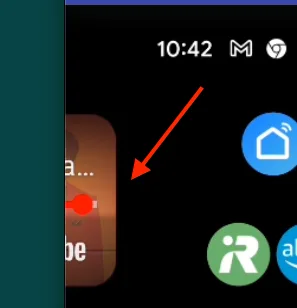
Shrinking the mini player screen is like playing hide-and-seek with your video. If you're using Android 12 or newer, just nudge the popup player towards the screen's edge, and it'll snugly fit into a smaller space.
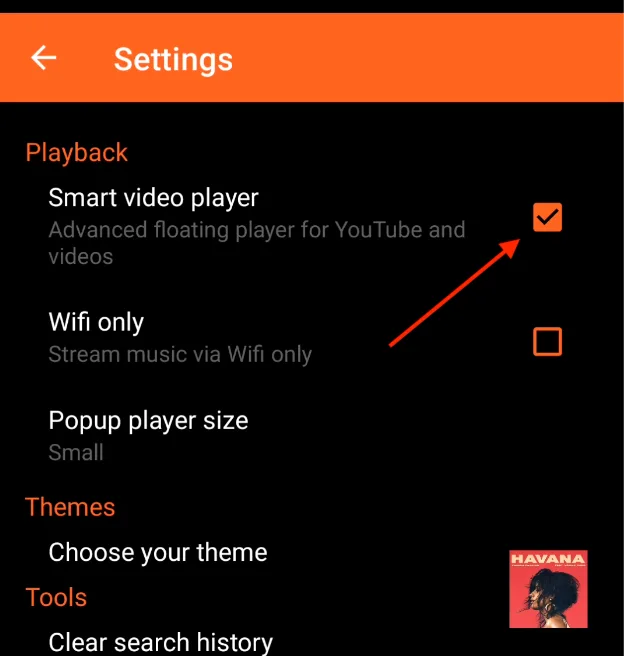
For an even tinier player, open All settings (tap the profile icon at the top right) and turn on Smart Video Player. This clever little feature nests the player near your status bar and includes a nifty minimize button for when you need your screen all to yourself.
These methods are perfect for keeping your video around without it taking over your screen.
How to make mini player screen even smaller? (example)
You have two methods to make that:
-
Move the popup closer to the edge of the phone screen, and it will become way smaller.
-
Or open All settings (tap the profile icon at the top right) and turn on Smart Video Player. Then in the floating player, you will have the possibility of having a very tiny screen and even placing it towards the status bar, which makes you more space.
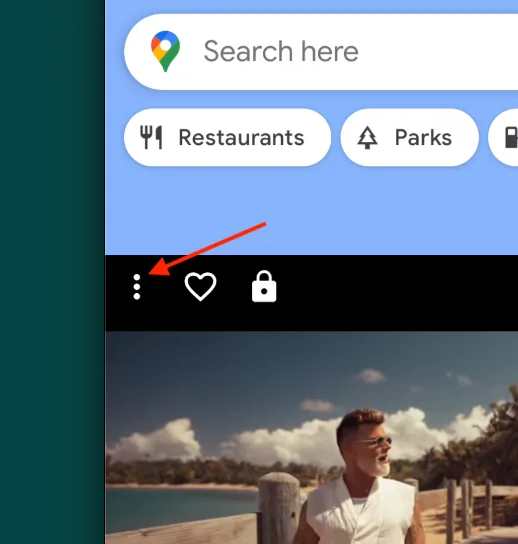
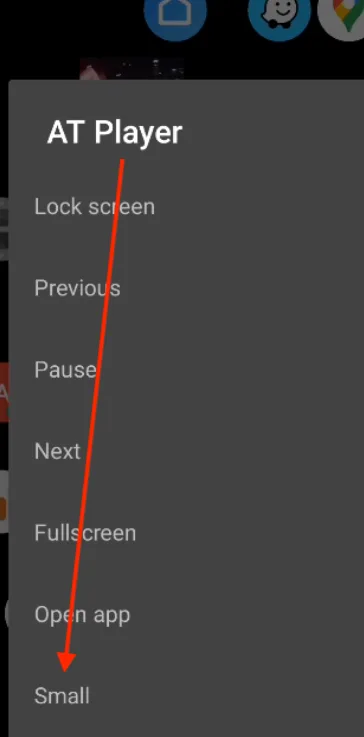
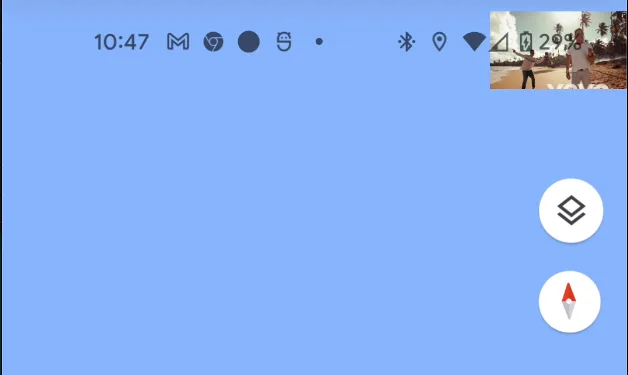
The smart player has an additional cool feature if you need to clean your screen quickly - use the minimize button in the top right. You can resume from the notification area afterward.
How to change PIP size?
Resizing the Picture-in-Picture (PIP) window in the app is like a quick magic trick for your screen. Just double tap on the floating window, and it'll change size right before your eyes. This handy gesture makes it super easy to adjust the window to fit your viewing preference, whether you need it bigger for better viewing or smaller to keep it out of the way. For even more flexibility, check out Smart Video Player in the app’s main settings. This special mode gives you extra options to fine-tune the floating window size just the way you like it. More control, more convenience, more fun!
How to make the PIP player fit the screen width?
Need a bit more room to enjoy your video? Just double tap the floating PIP player and watch it expand to fit the screen width. It’s like giving your video a little stretch so it can breathe and shine—perfect for catching every detail without missing a beat.
How to avoid the floating window on screen?
It's the YouTube PiP window - background play needs it. YouTube rules require audio and video together, so the floating player keeps your music going. All other content like downloads, radio, and local music plays in background without PiP.
If the floating player is getting in the way, just drag it to the edge of your screen to keep things tidy. Want an even cleaner look? Open All settings (tap the profile icon at the top right) and turn on Smart Video Player. It tucks the window neatly near the status bar in a more compact form and lets you minimize it when you need more space - perfect for staying focused while your music or video keeps playing in the background.
Exclusive floating player for YouTube videos
In the app, the floating video player is like the special spotlight for YouTube videos. It's where they get to shine in their own floating window. For other stars of the show like local videos or radio, they play their tunes in the background, sans the popup player. This thoughtful design ensures each type of content gets the stage it suits best, making your experience smooth and tailored to what you're enjoying.
What is a Smart Video Player?
The Smart Video Player is an alternative picture-in-picture floating player that offers more capabilities than the system one. It allows you to adjust sizes in a more finely-tuned way and includes advanced features like a minimize button, auto-hide, and more. Additionally, it provides enhanced protection from accidental clicks while your screen is in your pocket using the app's lock screen. Enable it in app settings.
What if PIP doesn’t turn on?
If Picture-in-Picture (PIP) doesn’t appear when you return to your home screen, don’t worry - it can happen sometimes. Try using a slower swipe when exiting to the home screen, as this often helps trigger background playback. Also, check that your device supports PIP and that it’s enabled in your system settings. If it still doesn’t activate, try the gesture again or reopen the app and give it another go. That usually does the trick!