How to make a song with an AI music generator on Android
AT Player on Android makes a song from a few words. Open Menu, tap Generate AI Music, type a genre and a description and tap Generate. The song gets a name and its own cover art and lands in the Offline tab as a file on your phone, so it plays without internet and you can send it to friends.
Make a song
- Tap the icon at the top right of the main screen, next to search. Menu opens.
- Under Tools tap Generate AI Music.
- If the app asks Allow Saving Music, allow it. The song is saved on your phone and needs this permission.
- Type a style into Genre, for example lo-fi hip hop or country.
- Describe the song in Describe your music… - the mood, the story, the instruments.
- Leave Generate Lyrics ticked for a song with words, untick it for an instrumental.
- Tap Generate.
- Without Premium an ad plays first, the song is saved only after it. If it did not play to the end, tap Watch Ad to Unlock in the progress window.
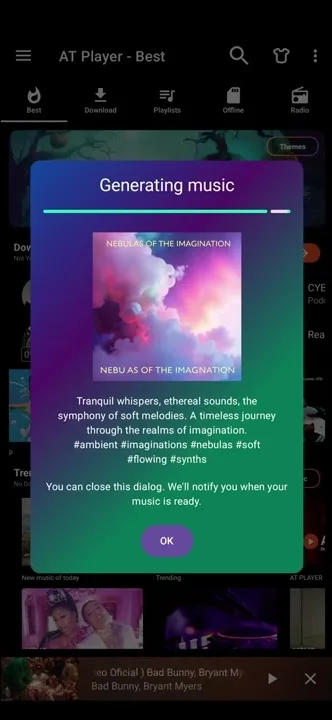
- Wait while Generating music… fills up. The cover art and a short description of the song show before it is done. You can close the window, the app sends a notification when the song is ready.
- When the ready window with the cover shows, tap Listen Now.
Leave both fields empty and the app picks a style itself and makes an instrumental. On Android 13 and up the app also asks to allow notifications, so the ready message reaches you with the app closed.
Home has a Generate AI Music button too, at the end of the page.
A new song like the one playing
Open the player, tap the three dots and choose Generate Similar Song. The app makes a new song inspired by the one you hear, under the same daily limit. The same row is in the three dots next to a YouTube song in a list.
Where the song is, offline and sharing
- The song is in the Offline tab under Songs, an MP3 file in the Music/atplayer folder of your phone with AT Player as the artist and AI Music as the album.
- The cover art is inside the file. It shows in the player and travels with the song when you share it.
- It plays without internet, like any music file on the phone.
- To share it, tap the three dots next to the song in Offline, tap Share… and pick the app to send it with.
The daily limit
Making songs has a daily limit, the app shows no number. When it is used up, a tap on Generate AI Music shows Daily limit reached and asks you to come back tomorrow or start a free trial for unlimited music generation. Premium has no limit and no ad.
What the generator does not do
- It starts from your words or from the song that plays, never from humming, a voice recording or an audio file of yours.
- There are no settings for tempo, length or sound quality. Genre, description and the lyrics box are all you set.
- It makes one song at a time. A tap on Generate AI Music while a song is being made shows its progress.
- It does not download music. Generate Similar Song makes a new song, it never saves the YouTube one. YouTube music in the app is streamed only and does not play with the screen off or in the background. What plays offline are your own songs, the music files on your phone and songs from the Download tab, see how to download music for offline listening.
For a whole playlist from a description instead of one song, see the AI playlist generator.
Google's pages on this: change app permissions, control notifications.
Questions
Is the AI music generator free?
Yes, with a daily limit and an ad before each song is saved. Premium has no limit and no ad.
Can I listen to my AI song offline?
Yes. The song is a file on your phone in the Offline tab and plays without internet.
What if the app says High demand?
The app is busy at that moment. Try again a bit later.
I closed the app before the song was done, what now?
Tap Generate AI Music again. If the unfinished song can go on, the app asks Resume unfinished generation, tap Yes.