How to change the music player theme and wallpaper on Android
Tap the round profile icon at the top right of AT Player to open Menu, then tap Themes under Settings and tap a tile. The app switches to the new look at once. For your own wallpaper tap Your Photo in the same grid and pick a picture from the phone.
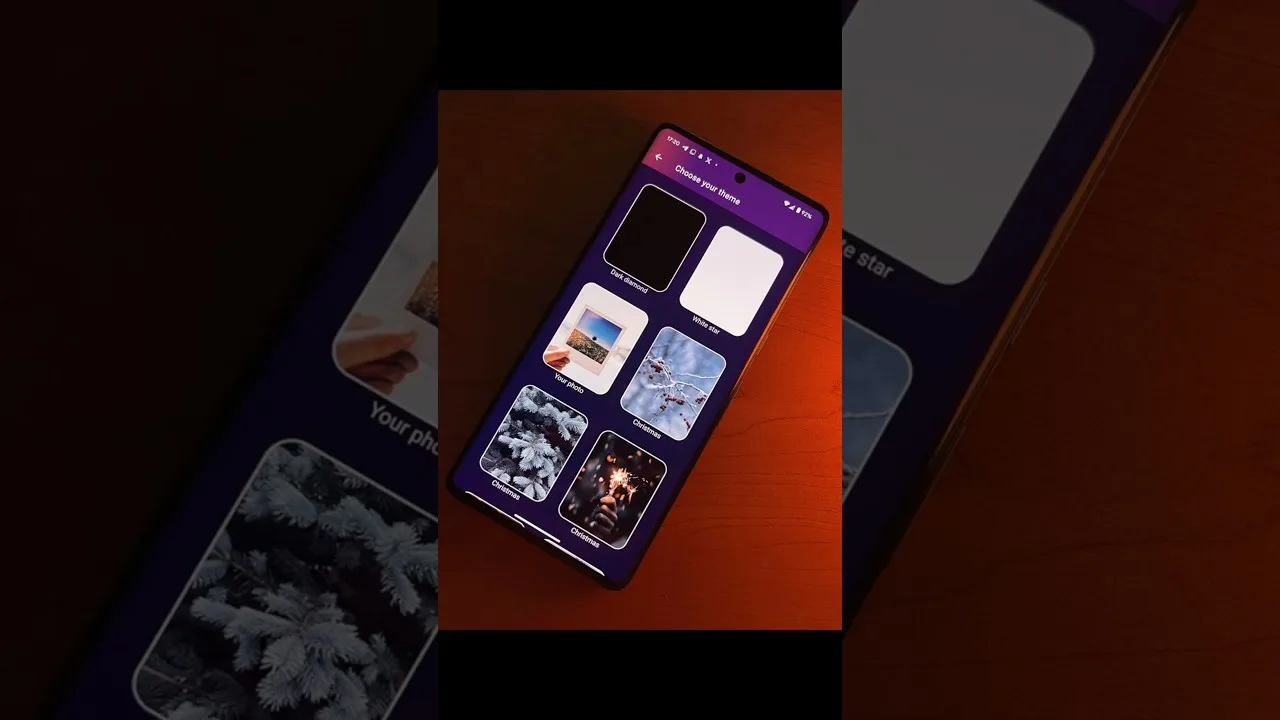
Change the theme
- On any main tab tap the round profile icon at the top right. After a sign in it can show your photo instead.
- Scroll down the Menu page to Settings.
- Tap Themes, the first row there. It shows the name of the theme you use now.
- Tap a tile in the Choose Theme grid.
The grid closes and the Menu page comes back in the new theme, the back arrow returns to the main screen. The same grid opens from All settings, then Choose Theme. Older versions had the themes at the top of the main screen, since the new main screen of November 2026 they live on the Menu page.
The themes in the grid
Five themes come with the app, next to the Your Photo tile.
- Ember, dark with an orange and magenta glow, the default since the November 2026 update.
- Dark Diamond, black, the default before Ember.
- White Star, the light theme.
- Mountain Sunrise and Fire Speed, two picture themes.
When the phone is online, more picture themes load into the same grid. In November and December the Christmas ones sit right after Your Photo.
Set your own photo as the wallpaper
- Open Menu and tap Themes.
- Tap Your Photo, the tile next to White Star.
- Allow access if the app asks for it.
- Pick a picture saved on the phone.
The photo fills the screen behind your lists, a little darker so the white text stays readable. The app crops it to the screen, so a tall photo works best. To swap the picture, tap Your Photo again and pick another one.
The same Menu page holds the tools too, among them AI Playlist (how the AI playlist generator works) and Generate AI Music (making your own song with AI).
What the themes do not do
- There is no color picker, the colors come with the theme you pick.
- The theme does not follow the dark mode of the phone, it stays until you pick another one.
- Your photo gets no blur or brightness slider.
- The app shows your photo from where it is saved. Delete or move it on the phone and the wallpaper is gone until you pick it again.
- The grid does not mark the theme in use. The Themes row on the Menu page shows its name.
Questions
Why did my theme change after the update?
With the November 2026 update Ember became the default, and phones on Dark Diamond moved to it once. Pick Dark Diamond in Themes and it stays.
Is there a dark mode?
Ember and Dark Diamond are dark, White Star is the light one. The app does not switch by itself with the dark mode of the phone.
Can I use my own photo as the background?
Yes. Open Menu, tap Themes, tap Your Photo and pick a picture from the phone.
Where did the T-shirt button go?
The themes moved to the Menu page with the new main screen. Tap the profile icon at the top right, then Themes.